
This article documents the first prototype of the OCR module for my VGLL (Video Games for Language Learning) project. The goal wasn’t to build a production-ready OCR pipeline, but to verify whether EasyOCR could reliably extract text from game screenshots. Along the way I encountered DLL compatibility issues with Python 3.14 and CUDA memory limitations, eventually rebuilding the environment around a CPU-only PyTorch installation.
One of the biggest challenges in language learning through video games isn’t translation.
It’s getting the text out of the game in the first place.
For my VGLL (Video Games for Language Learning) project, OCR is the foundation that makes every later feature possible—from machine translation and vocabulary extraction to learning progress tracking and personalized learning.
This prototype is the first step toward building that foundation.
Rather than aiming for production-ready accuracy, I wanted to answer a much simpler question:
Can EasyOCR reliably extract text from game screenshots?
If the answer was yes, the rest of the pipeline could finally begin.
Building the First OCR Prototype
The first step was to build the smallest possible OCR prototype.
The first step was to build the smallest possible OCR prototype.
At this stage, I wasn’t trying to optimize recognition accuracy or implement translation features. The objective was simply to verify whether EasyOCR could extract text from game screenshots reliably enough to serve as the foundation of the VGLL pipeline.
To test this, I wrote a minimal Python script that:
- Loads a game screenshot
- Performs OCR using EasyOCR
- Outputs the detected text and confidence score
Keeping the implementation intentionally simple made it easier to isolate problems during testing and validate the OCR pipeline before adding more advanced features.
Python:import easyocr
import logging
logging.basicConfig(level=logging.INFO, format='%(asctime)s - %(message)s')
def run_ocr(image_path: str, languages: list = ['en', 'ja']): logging.info(f"Initializing EasyOCR with languages: {languages}") reader = easyocr.Reader(languages) logging.info(f"Starting OCR for: {image_path}") results = reader.readtext(image_path, detail=1) for (bbox, text, prob) in results: logging.info(f"Detected: {text} | Confidence: {prob:.2f}")
if __name__ == "__main__": test_image = "sample_game_screenshot.png" run_ocr(test_image)
How the Prototype Works
The prototype processes a game screenshot in three simple steps.
- Initialize the OCR engine
- Detect text in the image
- Inspect the recognition results
Together, these three steps convert a game screenshot into machine-readable text, forming the foundation for every later stage of the VGLL project.
Initialize the OCR Engine
reader = easyocr.Reader(languages)EasyOCR first loads the language models required for text recognition.
The required models are downloaded automatically during the first execution, so initialization may take longer depending on your environment.
Detect Text from the Screenshot
results = reader.readtext(image_path, detail=1)This is the core OCR operation.
EasyOCR analyzes the image, identifies regions that appear to contain text, and attempts to recognize the characters.
With detail=1, each OCR result includes:
- Bounding box coordinates
- Recognized text
- Confidence score
The bounding box information will later allow VGLL to perform OCR only on specific interface elements, such as dialogue boxes or menu windows.
Inspect the Results
for (bbox, text, prob) in results:Each recognition result is processed individually and written to the log.
At this stage, the goal isn’t perfect recognition accuracy. Instead, I simply wanted to verify that text could be extracted from the game screen and identify where recognition errors occurred.
Testing the Prototype
With the prototype in place, it was time to see whether it actually worked.
At this stage, I wasn’t evaluating OCR accuracy. The primary objective was simply to confirm that EasyOCR could run successfully and extract text from a game screenshot.
The result, however, wasn’t what I expected.
Problem #1: Python 3.14 Compatibility
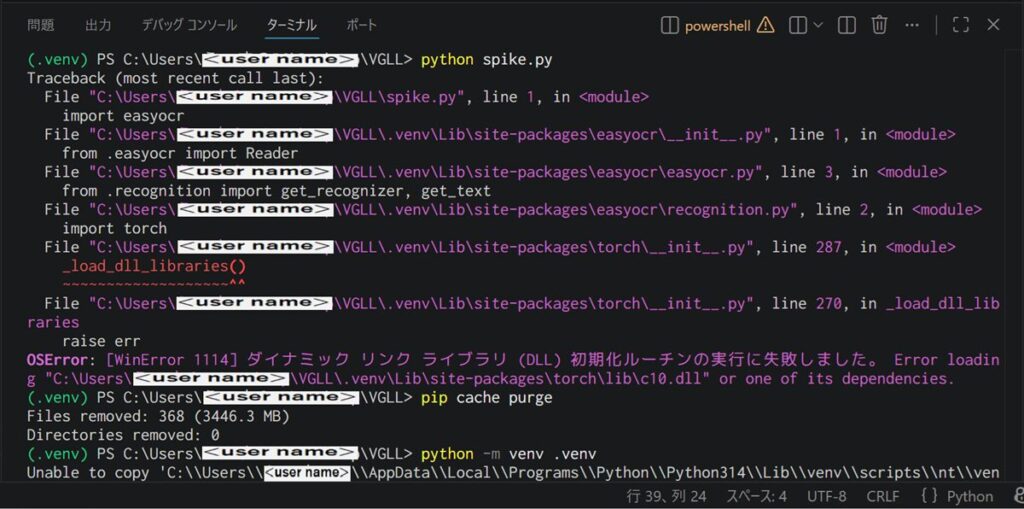
The first execution immediately failed with the following error:
OSError: [WinError 1114] A dynamic link library (DLL) initialization routine failed.
Error loading "...torch\lib\c10.dll" or one of its dependencies.
The error indicated that PyTorch was unable to load one of its required DLL files.
After investigating the issue, I found that the combination of Python 3.14 (the latest release at the time) and the current PyTorch build was likely the cause.
This serves as a reminder that using the latest version of Python doesn’t always mean the surrounding AI ecosystem is ready for it. Libraries such as PyTorch often require additional time before they fully support new Python releases.
To move forward, I rebuilt the environment using Python 3.12, a version with broader compatibility.
Note
I’ll cover this DLL issue in more detail in a separate troubleshooting article.
Problem #2: CUDA Out of Memory
Switching to Python 3.12 resolved the DLL problem, but another issue appeared during the next test.
torch.OutOfMemoryError: CUDA out of memory...This time, EasyOCR successfully initialized the GPU but failed while allocating enough GPU memory to perform OCR.
I also attempted to force CPU execution, but the environment still wasn’t stable enough for reliable testing.
The development machine used for this project is an older Windows 11 laptop with limited GPU resources, making a GPU-based workflow impractical.
Instead of spending more time trying to optimize CUDA, I decided to rebuild the project around a CPU-only PyTorch environment.
Rebuilding the Environment
After multiple failed attempts, the Python environment had become increasingly difficult to troubleshoot.
To eliminate potential dependency conflicts, I created a fresh virtual environment and installed the CPU-only version of PyTorch before installing EasyOCR.
# Create a new project directory
cd Desktop
mkdir VGLL_SurfacePro
cd VGLL_SurfacePro
# Create and activate a virtual environment
python -m venv .venv
.venv\Scripts\activate
# Upgrade pip
python -m pip install --upgrade pip
# Install the CPU-only version of PyTorch
pip install torch torchvision --index-url https://download.pytorch.org/whl/cpu
# Install EasyOCR
pip install easyocr
# Run the prototype
python spike.py
One advantage of EasyOCR is that no changes to the source code were required.
Once the CPU version of PyTorch was installed, the exact same spike.py script worked without modification.
With the environment finally stabilized, it was time to find out whether the prototype could actually read text from a game screenshot.
Results
After rebuilding the environment, the prototype finally ran successfully.
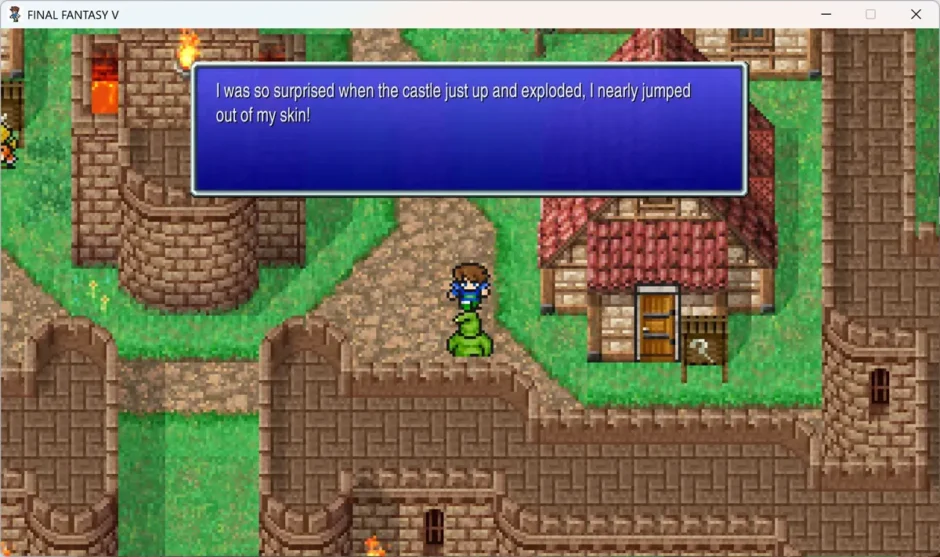
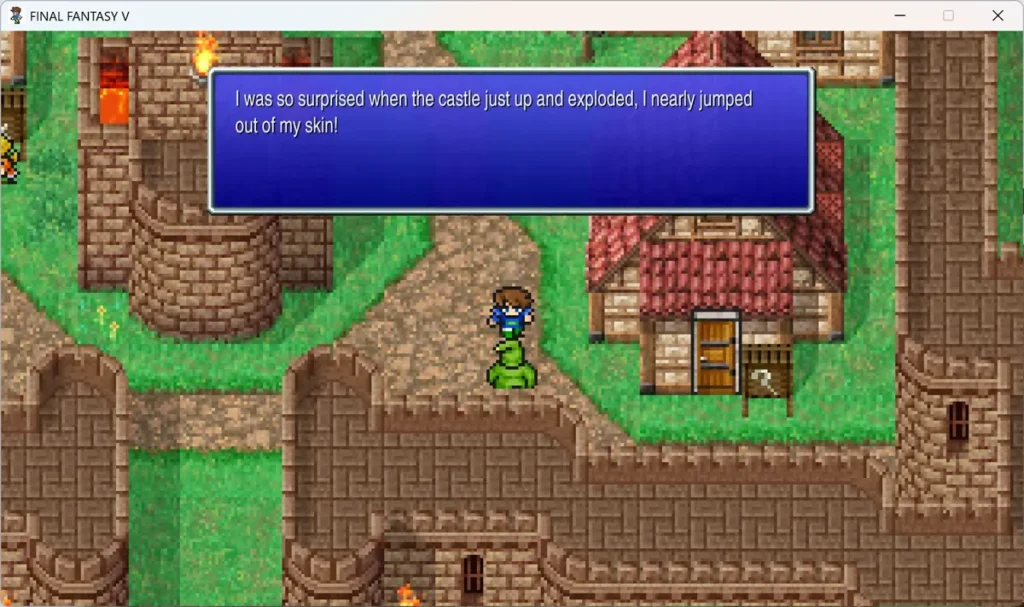
To evaluate the OCR pipeline, I tested it using a screenshot captured from an in-game dialogue scene.
Test Image
Game screenshot used during the initial OCR validation test for the VGLL prototype.
OCR Output
2026-07-07 18:43:50,638 - Detected: FINAL FANTASY V | Confidence: 0.93
2026-07-07 18:43:50,640 - Detected: WasSo | Confidence: 0.74
2026-07-07 18:43:50,640 - Detected: suipiisedwhenthecasilejustupandexploded,Ineailyjumped | Confidence: 0.64
2026-07-07 18:43:50,640 - Detected: outofmyskin} | Confidence: 0.33
Confidence represents how certain EasyOCR is about each recognition result. Values closer to 1.0 indicate higher confidence.
What Worked—and What Didn’t
The OCR output wasn’t perfect, but it successfully extracted text from the game screen.
The game title, “FINAL FANTASY V,” was recognized with high confidence, while the dialogue text contained several issues, including:
- Missing spaces
- Merged words
- Character misrecognition
These errors are expected when working with game screenshots. Stylized fonts, anti-aliasing, text outlines, and complex backgrounds all make OCR significantly more challenging than recognizing text from scanned documents.
However, perfect accuracy wasn’t the goal of this prototype.
The objective was to verify that text could be extracted from game screenshots—and that goal was achieved.
With reliable text extraction in place, future components such as machine translation, NLP-based vocabulary extraction, and personalized language learning can be built on top of it.
Conclusion
This experiment marks the first working OCR prototype for the VGLL project.
Although the current implementation still struggles with recognition accuracy, it successfully proved that EasyOCR can extract text from game screenshots in a practical development environment.
The project also exposed several real-world engineering challenges, including Python version compatibility, PyTorch dependencies, and GPU memory limitations. Solving those issues was just as valuable as getting OCR itself to run.
The next step is improving recognition quality through image preprocessing and OCR parameter tuning, with the long-term goal of building a robust text extraction pipeline for language learning.
For the VGLL project, this wasn’t just another prototype.
It was the moment the project learned how to see.